
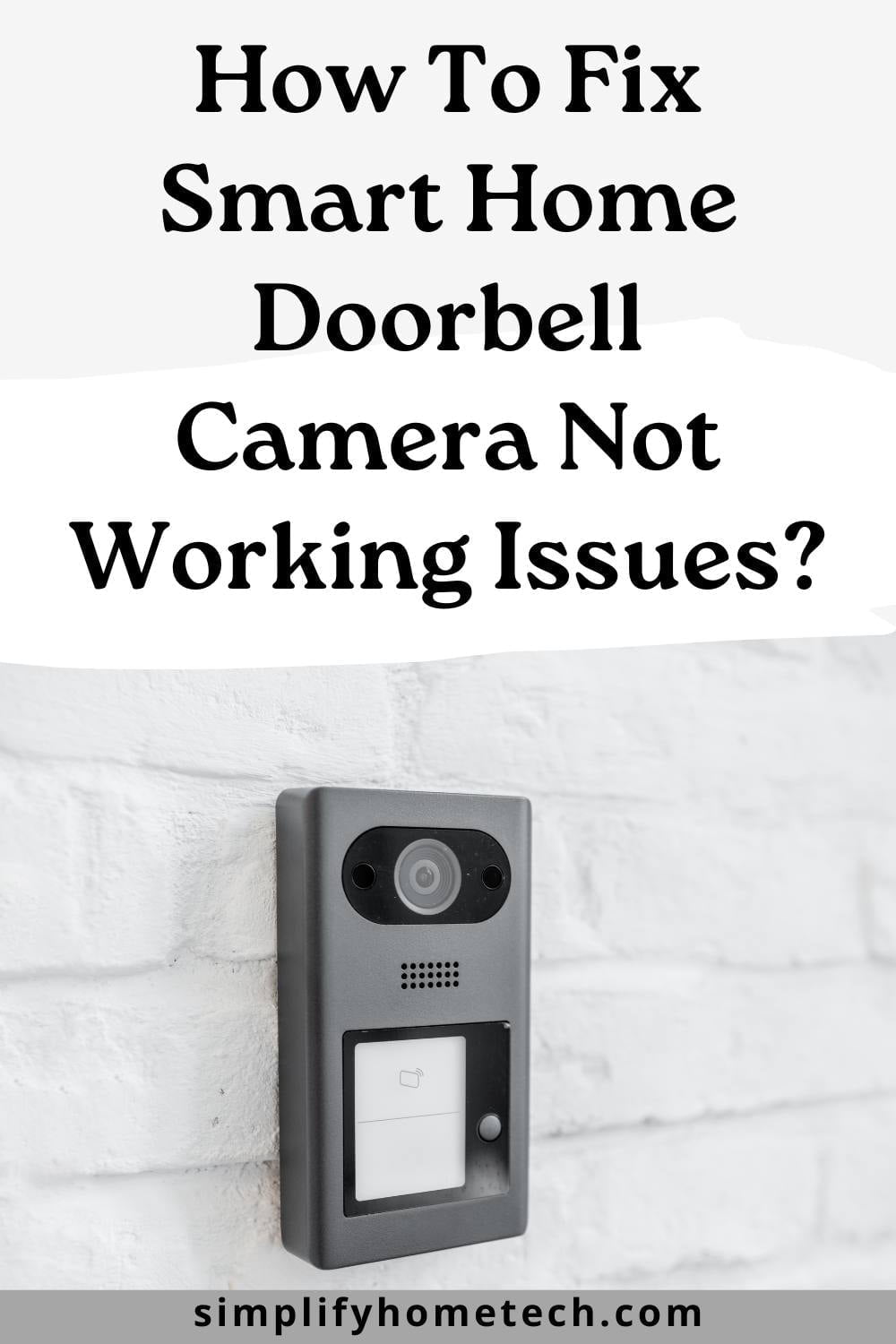
If you’ve ever run to your phone after hearing a knock, only to find your video doorbell frozen, offline, or refusing to load a clip, you already know how disruptive it feels. It’s not just an inconvenience — a doorbell camera that won’t work properly can mean missed packages, missed visitors, and a nagging sense that your front door isn’t as covered as you thought.
The good news is that the vast majority of smart doorbell problems trace back to a small handful of causes, and most of them are things you can fix yourself in a few minutes. Below is a practical, in-order troubleshooting guide for popular models like Ring, Google Nest, Eufy, Arlo, Wyze, and SimpliSafe doorbells, along with a few honest product recommendations if you decide your current unit has simply reached the end of its life.
Start With Your Wi-Fi Signal
Nine times out of ten, a doorbell that keeps dropping connection, buffering, or showing “device offline” isn’t broken — it’s just struggling to reach your router. Doorbells are usually mounted at the front of the house, often the farthest point from where your router sits, with brick, metal siding, or thick walls sitting in between.
Open your doorbell’s companion app and look for the Wi-Fi signal reading, usually shown as bars or a dBm number. If you’re seeing two bars or fewer, or a reading weaker than around -65 dBm, that’s your answer. A few fixes worth trying:
- Move your router closer to the front entry, if that’s feasible.
- Add a Wi-Fi extender or mesh node near the doorway. A brand like TP-Link Deco or Eero works well for this, since both are designed to blanket entryways and yards that main routers often miss.
- If your doorbell supports dual-band Wi-Fi, try switching between 2.4GHz (better range, more interference-prone) and 5GHz (faster, but weaker through walls).
Power-Cycle Everything
It feels almost too simple, but restarting the doorbell and your router clears out temporary glitches and forces both devices to re-establish a clean connection — and it solves more cases than you’d expect.
For battery-powered doorbells, pop the battery out for about 30 seconds and put it back in. For wired doorbells, switch off the breaker or fuse feeding the doorbell transformer for the same amount of time. While you’re at it, unplug your router and modem for a full minute too. Give everything two to three minutes after powering back on before you test — syncing with the app takes a moment.
Check the Power Supply Itself
Smart doorbells draw more power than the simple chime-and-buzzer systems they replaced, and inconsistent power is one of the more overlooked reasons behind random disconnects or a doorbell that seems to “die” throughout the day.
If you’re running a battery model, check the battery percentage inside the app. Anything under 20% can cause flaky performance well before the battery actually runs out, and cold weather will drain it faster than usual — something worth remembering once the seasons change.
If your doorbell is hardwired, confirm your existing transformer can actually supply enough voltage. Most smart doorbells need somewhere between 16 and 24 volts AC, and an older transformer built for a basic mechanical chime often can’t keep up. A flickering or dim status light on the unit is usually a giveaway that voltage is the problem. If you’re due for a replacement anyway, a compatible transformer from Ring or a universal 24V doorbell transformer is an inexpensive fix that solves this permanently.
Update the Firmware and the App
Manufacturers push updates constantly, and a lot of them exist specifically to patch bugs, connectivity issues, and security gaps. Running outdated firmware or an old app version is one of the quieter causes of doorbell malfunctions, mostly because it doesn’t announce itself the way a dead battery does.
Check your phone’s app store to confirm you’re on the latest version of the doorbell’s app, then dig into the device settings inside the app itself to look for a firmware update option. Turning on automatic updates afterward saves you from troubleshooting a bug that’s already been fixed on the manufacturer’s end.
Clean the Lens and Check the Sensors
If your doorbell connects just fine but the footage looks blurry, dark, or motion alerts simply aren’t triggering, the problem is probably physical rather than technical.
Wipe the lens down with a microfiber cloth — dust, rain spots, and the occasional spiderweb are more common culprits than people expect. Take a look at whether the motion sensor is blocked by a nearby plant, seasonal decoration, or catching direct sunlight glare at certain times of day. And double-check that the mounting angle hasn’t shifted, since a doorbell aimed slightly off can end up watching the street or the sky instead of your porch.
Revisit Your Notification and Motion Settings
Sometimes the hardware is working exactly as it should, and the real issue is buried in a settings menu.
Check that notifications are switched on both inside the doorbell’s app and in your phone’s system-level notification settings, since these two can get out of sync without you noticing. Review the motion sensitivity setting too — too low and it misses real visitors, too high and it floods you with alerts while draining the battery faster. It’s also worth confirming that a scheduled “Do Not Disturb” mode isn’t quietly muting alerts during the exact hours you keep checking.
Do a Full Reset and Re-Pair the Device
If you’ve worked through everything above and the doorbell is still misbehaving, a factory reset often clears out whatever corrupted setting or connection error is causing the trouble.
Look for the small reset pinhole, usually on the back or bottom of the unit, and hold it in for 15 to 20 seconds until the indicator light changes or starts flashing. Remove the device entirely from the app, then add it again as though you were setting it up for the very first time. It helps to stand close to the router during setup and only move the doorbell back to its mounting spot once the connection is confirmed and stable.
Rule Out Router-Side Restrictions
Every so often, the doorbell and the app are both fine, and the real culprit is a setting on your router that’s quietly blocking smart home devices from staying connected.
Check whether “client isolation” or “AP isolation” is switched on, since these settings prevent devices on the same network from communicating properly with each other. Confirm MAC address filtering isn’t unintentionally blocking your doorbell, and if you’re running a dual-router setup — say, an ISP-provided router alongside a separate mesh system — make sure the doorbell isn’t stuck bouncing between two competing networks.
When It’s Time to Replace Rather Than Repair
If you’ve been through every step above and the doorbell still won’t hold a connection, record footage, or send alerts, you may be dealing with a hardware failure rather than a settings issue. This is especially likely if the unit is more than three or four years old and struggling to hold a charge, if you notice fogging or moisture inside the camera lens, or if the app itself reports a hardware fault rather than a generic connectivity error.
At that point, it’s usually faster to contact the manufacturer’s support line than to keep troubleshooting, since most brands offer warranty replacements for verified defects.
If you do decide it’s time for something new, a few models consistently stand out for reliability and ease of setup:
- Ring Wired Video Doorbell Pro – A strong pick if you want tighter integration with Alexa and a wired setup that avoids battery maintenance altogether.
- Google Nest Doorbell (wired) – Well suited to households already using Google Home, with dependable motion detection and a clean, fast app experience.
- Eufy Video Doorbell – A solid choice for anyone who prefers local storage over a cloud subscription, which also tends to mean fewer connectivity hiccups tied to account syncing.
- Arlo Essential Video Doorbell – Balances battery and wired options well, with flexible mounting kits for tricky entryways.
Frequently Asked Questions
Why does my smart doorbell keep going offline even after I reset the router? This usually points to a weak signal reaching the doorbell’s specific mounting location rather than a router problem itself. Try a Wi-Fi extender near the entry point before assuming the router or the doorbell is at fault.
Can cold weather really affect my doorbell camera’s performance? Yes. Battery-powered doorbells lose charge noticeably faster in cold temperatures, and some units also slow down slightly in very low temperatures. If you notice seasonal drops in performance, it’s worth checking the battery percentage more frequently in winter.
Why am I not getting any notifications even though the doorbell is online? This is almost always a settings issue rather than a hardware one. Check notification permissions both inside the doorbell app and in your phone’s system settings, since one can be enabled while the other is silently switched off.
How often should I clean my doorbell camera lens? Roughly once a month is a reasonable habit, or more often if you live somewhere dusty, rainy, or near trees that shed pollen. A quick wipe with a microfiber cloth takes seconds and prevents a lot of unnecessary troubleshooting.
Is it worth switching from a battery-powered doorbell to a wired one? If you’re tired of managing battery levels or noticing connectivity dips as the battery drains, a wired model removes that variable entirely. It does require existing doorbell wiring and a compatible transformer, so it’s worth checking your home’s setup first.
My doorbell records video but the motion detection feels inconsistent. What should I check first? Start with the mounting angle and the motion sensitivity setting, since these two together cause the majority of missed or inconsistent detections. A slightly shifted angle can send the detection zone toward the street or sky instead of your porch.
Most doorbell camera problems come down to one of three things: a weak Wi-Fi connection, an inconsistent power source, or outdated firmware. Working through the steps above in order resolves the overwhelming majority of cases without needing a replacement. Keep the app updated, check your battery or transformer occasionally, and give your doorbell a fresh connection every few months — it’s a small habit that keeps your front door genuinely covered instead of just appearing to be.