
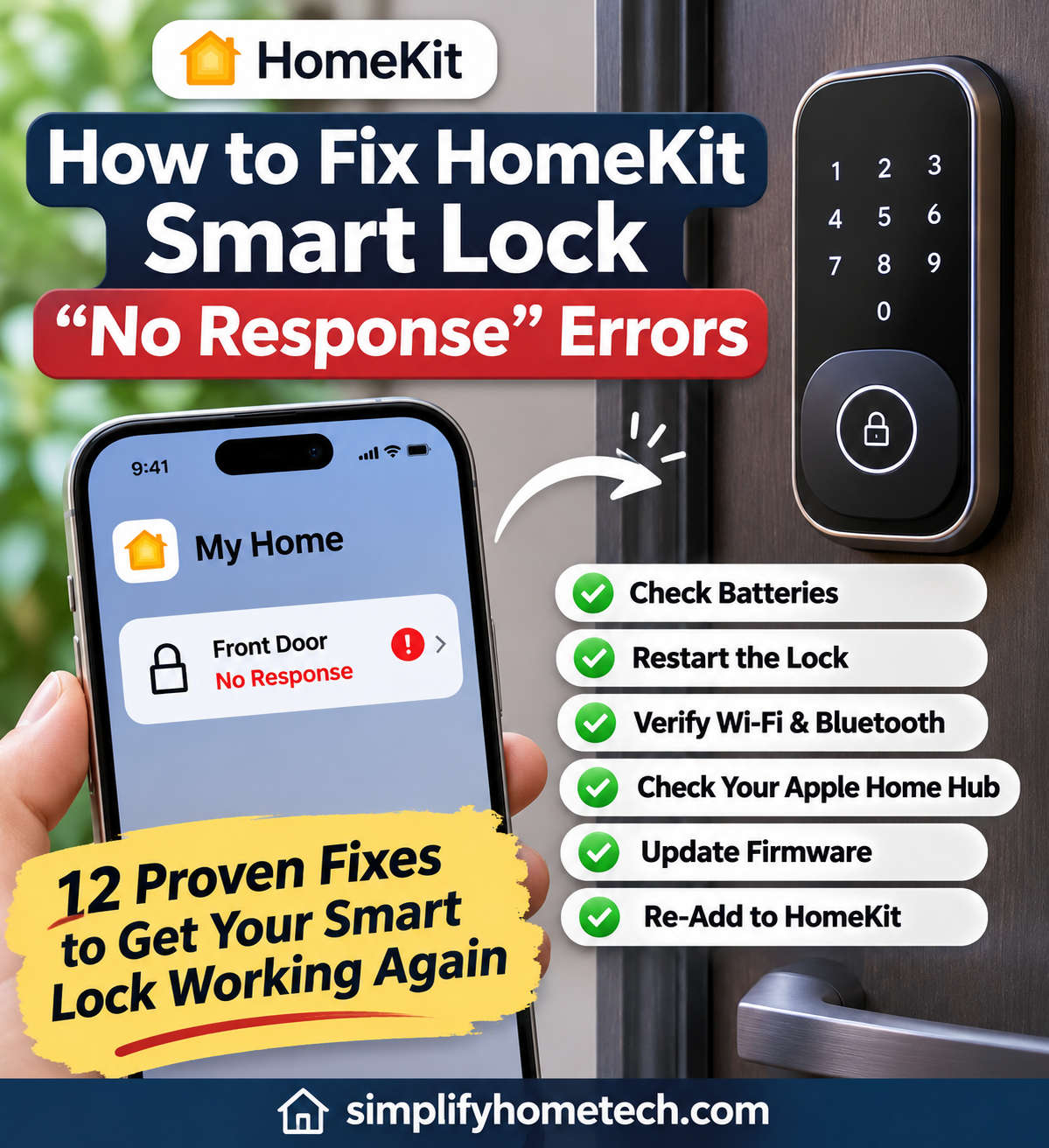
A smart lock should make getting in and out of your home easier. You expect to check your door’s status, lock it remotely, or ask Siri to secure your home without giving it much thought. But when the Apple Home app suddenly displays “No Response” beside your smart lock, that convenience disappears.
The frustrating part is that your lock might still work perfectly with its keypad, fingerprint scanner, or physical key. It simply refuses to communicate with Apple Home.
Fortunately, a HomeKit smart lock showing “No Response” doesn’t always mean the device is faulty. The problem often comes down to weak batteries, Bluetooth interference, unstable Wi-Fi, a disconnected Apple home hub, or temporary software glitches.
In this guide, you’ll learn how to fix HomeKit smart lock “No Response” errors using practical troubleshooting methods. We’ll cover common connectivity problems, Apple Home hub issues, Matter and Thread complications, and ways to keep your smart lock working reliably.
What Does “No Response” Mean on a HomeKit Smart Lock?
When your smart lock displays “No Response” in Apple Home, it means the app cannot communicate with the device or confirm its current status.
This doesn’t necessarily mean your door is unlocked or that the lock has stopped working.
For example, your smart lock might still respond to a keypad code while Apple Home cannot determine whether the door is locked.
You may notice symptoms such as:
Apple Home shows “No Response” instead of the lock’s status.
Siri cannot lock the door or confirm whether it’s secured.
The lock works through its manufacturer’s app but not Apple Home.
HomeKit automations stop working.
The lock responds when you’re nearby but not when you’re away.
Lock status updates are delayed or inconsistent.
These symptoms offer useful clues. A lock that works nearby but fails remotely often has a different problem from one that won’t respond anywhere.
Why Does Your HomeKit Smart Lock Keep Saying “No Response”?
Before changing settings, it helps to understand what might be interrupting the connection.
HomeKit-compatible smart locks communicate through Bluetooth, Wi-Fi, Thread, or Matter over Wi-Fi or Thread. Some also depend on a manufacturer-specific bridge.
Although these technologies work differently, several common problems can affect them.
Low Battery Power
Smart locks need enough power to operate both their locking mechanisms and wireless components.
When batteries become weak, some models may continue working manually while their wireless connection becomes unreliable.
Weak Bluetooth or Wi-Fi Signals
A lock installed far from its router, hub, or Bluetooth controller may struggle to maintain a stable connection.
Metal doors, thick walls, and nearby electronics can make wireless communication less reliable.
Apple Home Hub Connectivity Problems
A compatible HomePod or Apple TV can act as your Apple home hub, supporting remote access and automations.
If the hub loses its network connection, your smart lock may become unavailable when you’re away from home.
Thread or Matter Network Issues
Some newer smart locks use Thread, a low-power mesh networking technology.
These devices require compatible Thread network infrastructure to communicate with Apple Home.
Matter-enabled locks can also experience pairing or network communication problems.
Outdated Firmware
Software bugs sometimes affect how smart locks communicate with Apple Home.
An outdated lock firmware version, iPhone operating system, or home hub software may contribute to intermittent connection failures.
How to Fix HomeKit Smart Lock “No Response” Errors
The most effective troubleshooting approach is to start with simple checks before attempting more disruptive solutions.
Try the following methods in order, checking Apple Home after each step. You may find that one quick adjustment restores the connection.
1. Check Whether the Smart Lock Works Manually
Start by determining whether your lock has a physical problem or simply cannot communicate with HomeKit.
Stand beside your door and operate the lock using its available controls.
Depending on your model, try its keypad, fingerprint scanner, interior thumb-turn, or physical key.
If the lock operates normally, the issue is more likely related to wireless communication.
If the bolt sticks, makes unusual noises, or fails to move, inspect the batteries and door alignment before troubleshooting HomeKit.
Why this works: Testing the lock directly helps separate mechanical failures from network-related problems.
Keep the door open during testing so you don’t accidentally lock yourself out.
2. Restart Your HomeKit Smart Lock
Temporary software glitches can prevent a smart lock from responding to Apple Home.
Restarting the device often helps restore communication.
For a lock with removable batteries:
Open the battery compartment.
Remove the batteries.
Wait approximately 30 seconds.
Reinstall them correctly.
Allow the lock to restart.
Check its status in Apple Home.
For rechargeable models, use the manufacturer’s recommended restart procedure.
Why this works: Restarting clears temporary operating errors and allows the lock to reestablish its wireless connection.
A normal restart usually preserves access codes and existing HomeKit settings.
3. Replace or Recharge the Batteries
Low battery power is one of the easiest problems to overlook.
Even when a smart lock can still operate its motor, its wireless communication may become unstable as power decreases.
Check the battery level in the manufacturer’s app if available.
If the batteries are low, replace or recharge them according to the product instructions.
Use the recommended battery type, and avoid mixing old and new batteries.
Why this works: Reliable battery power helps the lock maintain communication while operating its electronic components.
After replacing the batteries, allow the lock time to reconnect before testing it again.
4. Check Bluetooth Connectivity
If your HomeKit lock uses Bluetooth, distance may be causing the error.
Move close to the door with your iPhone and make sure Bluetooth is enabled.
Open Apple Home and wait briefly for the lock’s status to appear.
If the lock works nearby but becomes unavailable farther away, the wireless signal may be too weak.
For Bluetooth-based setups, moving a compatible home hub closer to the lock may improve connectivity.
Why this works: Bluetooth has a limited operating range, and physical obstacles can weaken the signal. Testing nearby helps identify whether distance is responsible.
5. Inspect Your Wi-Fi Network
Wi-Fi problems can affect Wi-Fi-enabled locks, manufacturer bridges, and Apple home hubs.
First, confirm that your router is working and your iPhone can access the home network.
Then check whether:
Your router’s Wi-Fi settings have changed.
Your smart lock or bridge is connected.
The wireless signal reaches your door.
The required 2.4 GHz network is available.
Guest network isolation is blocking local communication.
If you recently changed your Wi-Fi password or installed a new router, reconnect the affected lock or bridge using its manufacturer’s app.
Why this works: HomeKit devices need reliable communication through their supported network connections. Incorrect settings can prevent Apple Home from reaching the lock.
Remember that Bluetooth and Thread locks may not connect directly to Wi-Fi.
6. Restart Your Router
Sometimes the problem lies with the router rather than the lock.
A router can continue providing internet access while experiencing temporary local network communication problems.
To restart it:
Disconnect the router from power.
Wait around 30 seconds.
Reconnect the power.
Allow the network to become available.
Reopen Apple Home and check the lock.
If your setup includes a separate modem, mesh system, or smart home bridge, restart those devices according to their instructions when appropriate.
Why this works: Restarting can clear temporary network faults and restore communication between smart home devices.
However, repeated disconnections may indicate poor wireless coverage or unsuitable router settings.
7. Check Your Apple Home Hub
If your lock works when you’re home but displays “No Response” when you’re away, investigate your Apple home hub.
A compatible HomePod or Apple TV supports remote access and home automations.
To check the hub:
Open the Apple Home app.
Tap the More button.
Select Home Settings.
Open Home Hubs & Bridges.
Check whether your configured home hubs are connected.
If a hub is unresponsive, restart it and confirm that it has a stable network connection.
Why this works: When remote access depends on your home hub, an offline or unstable hub can prevent Apple Home from communicating with the lock.
If you have multiple compatible hubs, a more reliable preferred hub may improve performance where that setting is supported.
8. Troubleshoot Thread and Matter Connections
Thread-enabled locks communicate through a low-power mesh network rather than connecting directly to standard Wi-Fi.
They need a compatible Thread border router to communicate with the wider home network.
If your lock uses Thread, confirm that the border router is powered on and operating correctly.
You should also check whether other Thread accessories are having connectivity problems.
Try restarting the affected lock using the manufacturer’s instructions, then allow the network time to stabilize.
For Matter over Wi-Fi locks, check Wi-Fi connectivity instead.
Why this works: Matter and Thread devices depend on functioning network infrastructure. Restoring that connection allows the lock to communicate with Apple Home again.
Avoid immediately factory resetting a Thread lock, as reconnection can sometimes take several minutes.
9. Update Your Smart Lock Firmware
Manufacturers occasionally release firmware updates to fix connectivity bugs and improve compatibility.
Open your smart lock’s companion app and look for firmware updates in its device settings.
If an update is available, follow the manufacturer’s installation instructions.
Keep the lock sufficiently charged throughout the process.
Why this works: Firmware updates may correct software problems affecting Bluetooth, Wi-Fi, Thread, Matter, or HomeKit communication.
Also keep your iPhone, HomePod, and Apple TV updated to compatible software versions.
10. Check the Manufacturer’s App
If Apple Home still shows “No Response,” open the manufacturer’s smart lock app.
Try checking the lock status or operating it through that app.
If the lock works normally there, the issue may be specific to HomeKit communication, pairing, or the Apple home hub.
If neither app can control the lock, focus on its battery, wireless connection, or required bridge.
Why this works: Comparing the two apps helps narrow down which part of the system is failing.
However, remember that manufacturer apps may use different connection methods from Apple Home.
11. Remove and Re-Add the Lock to Apple Home
If other troubleshooting methods fail, the lock’s HomeKit pairing may need to be recreated.
Before proceeding, locate your HomeKit setup code or Matter pairing information.
Also review the manufacturer’s instructions, since removing a lock can affect automations, permissions, and access settings.
To remove the accessory:
Open Apple Home.
Select your smart lock.
Open its accessory settings.
Choose Remove Accessory, if available.
Confirm removal.
Next, follow the manufacturer’s pairing instructions and add the lock again through the Home app.
Why this works: Re-pairing can resolve persistent configuration problems that prevent Apple Home from recognizing or communicating with the device.
Use this method only after trying less disruptive solutions.
12. Factory Reset the Smart Lock as a Last Resort
A factory reset may be necessary when the lock remains unavailable despite normal power and network conditions.
However, resetting can erase important settings.
Depending on the model, you might lose access codes, fingerprint registrations, HomeKit pairing, or lock calibration.
Before proceeding, make sure you have a reliable alternative entry method and the information needed to set up the lock again.
Follow the manufacturer’s exact reset procedure.
Why this works: A factory reset returns the lock to its original configuration, potentially removing persistent software or pairing errors.
It won’t repair faulty hardware or improve a consistently weak wireless signal.
HomeKit Smart Lock Not Responding When Away From Home
If your smart lock works locally but becomes unavailable when you’re outside, the problem often involves remote access.
Start by checking your Apple home hub. Confirm that it’s connected to the network and operating normally.
Next, test whether the lock responds when your iPhone is connected to the home Wi-Fi network.
If local control works but remote control fails, focus on the hub and internet connection rather than resetting the lock.
For Bluetooth and Thread locks, also verify that the appropriate hub or border router can communicate with the device.
Remember, “No Response” means the current status is unknown. It doesn’t prove that your door is unlocked.
HomeKit Smart Lock Says “No Response” After Changing Routers
Replacing your router can introduce unexpected smart lock problems.
A new network name, password, wireless security setting, or device isolation feature may prevent accessories from reconnecting.
If your lock connects directly to Wi-Fi, update its network configuration through the manufacturer’s app.
For locks using a bridge, reconnect the bridge instead.
Check whether the new router supports the wireless frequency required by your equipment. Some smart locks and bridges need 2.4 GHz Wi-Fi.
You should also ensure that local network discovery isn’t blocked by guest network isolation or restrictive router settings.
These changes help restore communication without unnecessarily removing the lock from Apple Home.
HomeKit Smart Lock Works in Its App but Not in Apple Home
This problem can be confusing because the lock appears perfectly functional outside Apple’s smart home system.
The first step is to check whether other HomeKit accessories respond normally.
If several unrelated devices show “No Response,” investigate your home hub and network.
If only one smart lock is affected, check its firmware, connection type, and HomeKit pairing.
A restart may resolve temporary communication problems. If the issue continues, follow the manufacturer’s instructions for reconnecting the lock.
Avoid resetting every HomeKit device when the problem affects only one accessory.
How to Prevent HomeKit Smart Lock Connection Problems
Once your lock is responding again, regular maintenance can help prevent future interruptions.
Monitor Battery Levels
Check battery levels occasionally, especially before leaving home for an extended period.
Replace or recharge batteries before they become critically low.
Maintain Strong Wireless Coverage
Place routers, home hubs, and compatible bridges where they can communicate reliably with your lock.
Remember that metal doors and thick walls may reduce wireless performance.
If your current lock continues to disconnect despite troubleshooting, it may be worth considering a newer model with more reliable connectivity. Our guide to the best HomeKit smart locks in 2026 compares important features, compatibility, security, and connection options to help you choose a suitable replacement.
Keep Devices Updated
Install appropriate firmware and software updates for your lock, iPhone, and Apple home hub.
These updates can improve compatibility, stability, and security.
Keep a Backup Entry Method
Never depend entirely on wireless connectivity to enter your home.
Maintain a working physical key or another manufacturer-supported entry method whenever possible.
Frequently Asked Questions
Why Does My HomeKit Smart Lock Say “No Response” but Still Work?
Your lock may still operate manually while its wireless communication is unavailable. Weak batteries, Bluetooth interference, or home hub problems are common possibilities.
Can I Fix HomeKit “No Response” Without Resetting the Lock?
Yes. Many connection problems can be resolved by restarting the lock, replacing batteries, checking wireless connectivity, or restarting the home hub.
Why Does My HomeKit Smart Lock Keep Disconnecting?
Repeated disconnections may result from weak wireless signals, unstable network equipment, low batteries, or software problems. Check whether the issue occurs at specific times or locations to identify the cause.
Do I Need a HomePod for My HomeKit Smart Lock?
Not always. Some HomeKit locks support direct local control through an iPhone. However, remote access, automations, and certain Matter or Thread configurations require compatible Apple home hub infrastructure.
Will Resetting My Smart Lock Delete Access Codes?
A factory reset may erase stored access codes, fingerprints, and pairing information, depending on the model. Always check the manufacturer’s instructions before resetting.
Why Does My Smart Lock Stop Responding After a Power Outage?
Your battery-powered lock may continue working while its router, bridge, or Apple home hub remains offline. Restore those devices and allow the network to reconnect.
Final Thoughts: Restore Your HomeKit Smart Lock Connection
A HomeKit smart lock displaying “No Response” is inconvenient, but the problem is often easier to resolve than it first appears.
Start with the basics: check the batteries, confirm that the lock works manually, and restart the device. If the error continues, investigate Bluetooth, Wi-Fi, Thread, or your Apple home hub based on the lock’s connection type.
Firmware updates and network adjustments can resolve more persistent communication problems. Removing the lock from Apple Home or performing a factory reset should be reserved for situations where simpler fixes haven’t worked.
Most importantly, keep a reliable backup entry method and never assume your door’s security status based on an unavailable HomeKit connection.
With a little troubleshooting and routine maintenance, you can restore dependable smart lock control and enjoy a smoother Apple Home experience.