
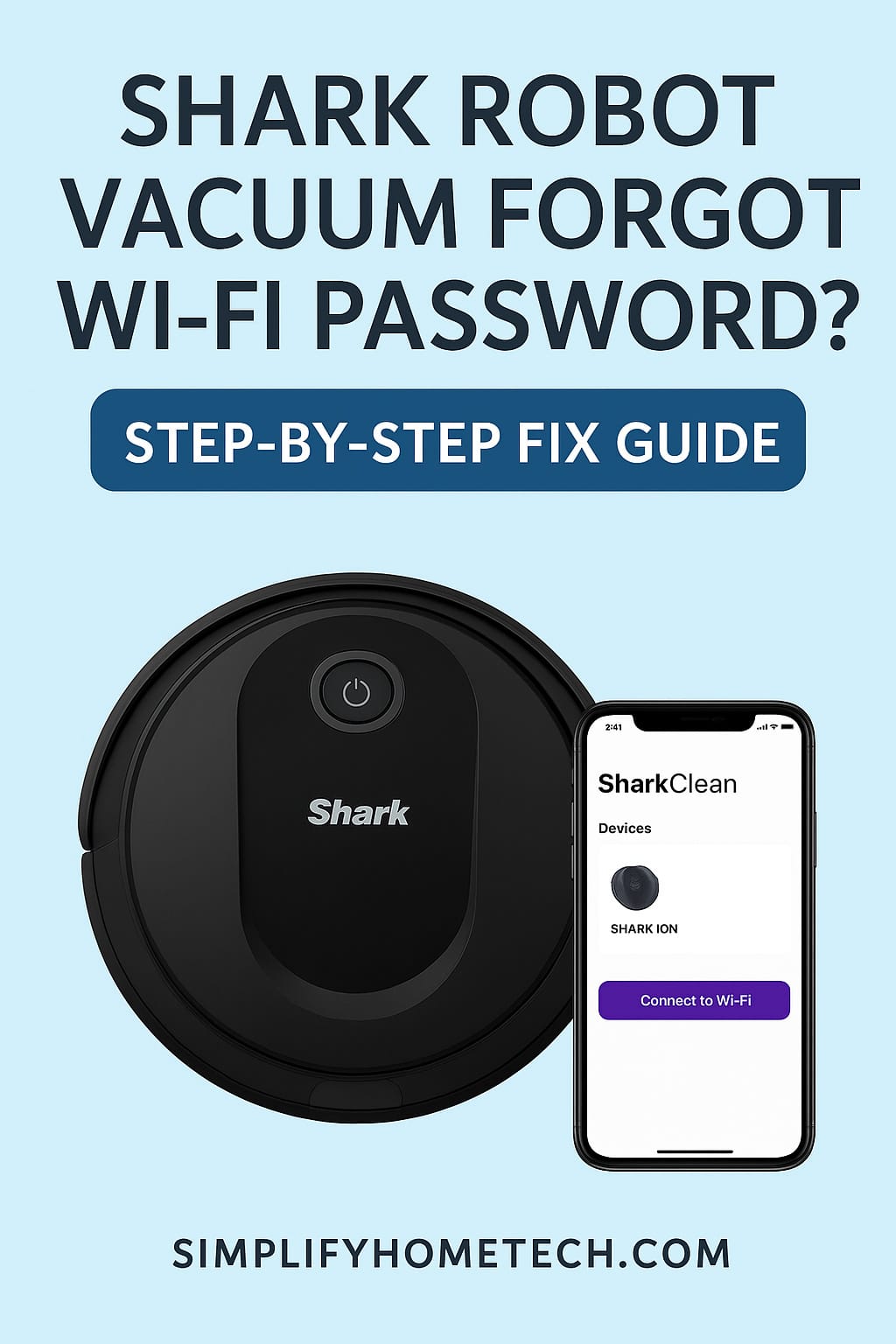
Smart home technology is meant to make life easier. Your Shark robot vacuum silently tackles daily cleaning, keeps your home fresh, and can be controlled right from your phone—until suddenly, the app stops working because the robot is no longer connected to Wi-Fi.
One of the most frustrating issues Shark robot vacuum owners face is when the vacuum forgets the Wi-Fi password or refuses to reconnect after a network change. Without Wi-Fi, your robot can still clean, but several powerful smart features become unavailable:
- Remote start from the SharkClean app
- Smart scheduling and maintenance alerts
- Voice assistant compatibility through Alexa or Google Home
- Live map progress (for mapping models)
- Cleaning history access and digital room selection
If your Shark robot vacuum is offline and you can’t remember the Wi-Fi password used before, don’t worry—you’re not alone. Wi-Fi connectivity issues are extremely common whenever a router or password changes, or even after a smartphone or app update.
This comprehensive guide will walk you step-by-step through the most reliable ways to fix the problem, restore the Wi-Fi connection, and get your Shark robot vacuum back to fully automated cleaning smoothly.
Why Shark Robot Vacuums Lose Wi-Fi Connection
Before trying to fix the problem, it helps to understand what may have caused it. A Shark robot vacuum connects to your home Wi-Fi the same way your smartphone does: by using stored password credentials. Once that password becomes outdated or invalid, the connection fails and the robot can no longer communicate with the app.
The most common triggers include:
- Wi-Fi password changed
- Home router replaced or factory reset
- Robot vacuum was offline too long and lost credentials
- App cache or settings became corrupted
- Robot firmware outdated
- Wi-Fi network was renamed
- Connected phone is on 5 GHz instead of 2.4 GHz
- Router moved too far from robot docking station
When connection breaks, the SharkClean app typically shows “Offline” or the robot completely disappears from the device list.
The good news: almost all of these issues are fixable at home with simple steps.
Best Fixes When Shark Robot Vacuum Forgot the Wi-Fi Password
Below, you’ll find the top troubleshooting methods tested across Shark models including:
IQ Series, AI Ultra Series, EZ Series, ION/DuoClean models, and older RV variants.
For the best results, start from the first fix and move downward.
1️⃣ Reconnect the Robot to Wi-Fi from the SharkClean App
If your home Wi-Fi password recently changed, this is the fastest solution.
Here’s what to do:
- Open the SharkClean app on your smartphone
- Tap your robot vacuum device profile
- Go to Settings → Wi-Fi
- Select Forget Network
- Choose Reconnect Wi-Fi
- Enter your updated Wi-Fi password
- Follow the guided steps on screen
Be sure that your phone is on the same network you want the robot to use. Shark devices cannot pair if the phone is on mobile data, VPN, or guest Wi-Fi.
If the connection fails, move to the next solution.
2️⃣ Restart Your Shark Robot Vacuum
Sometimes internal memory fails to refresh unless the robot is power-cycled.
How to reboot:
- Switch the power button on the underside to OFF
- Wait around 10–15 seconds
- Turn power back ON
- Return the robot to the dock
- Retry Wi-Fi setup within app
This alone resets many temporary connectivity issues.
3️⃣ Restart Your Router or Wi-Fi Modem
The router might not assign an IP address properly after password or network adjustments.
Restarting correctly matters:
- Unplug the router
- Unplug the modem (if separate)
- Wait 30–60 seconds
- Plug the modem back in first
- Reconnect the router
- Wait for all lights to stabilize
- Try reconnecting the robot again
During the setup, keep the robot close to the router—10 feet or less is ideal.
4️⃣ Ensure Shark Robot Is Using a 2.4 GHz Network
This is one of the most overlooked causes. Many Shark robots do not support 5 GHz Wi-Fi networks. However, most modern routers automatically merge both 2.4 and 5 GHz under a single SSID name—which causes pairing confusion.
Quick checklist:
- Confirm router has 2.4 GHz enabled
- Connect your phone to 2.4 GHz specifically
- Avoid network names with emojis or symbols
- Disable guest network during initial pairing
Advanced tip:
If needed, split your bands into two visible names, such as:
- HomeWifi_2.4
- HomeWifi_5G
Then pair only through the 2.4 GHz option.
5️⃣ Reset the Robot’s Wi-Fi Pairing Mode
This allows the robot to forget old Wi-Fi credentials and refresh its connection setup.
Each model uses different button combinations:
| Shark Series | Wi-Fi Reset Method |
|---|---|
| IQ, AI, RV | Hold Dock + Clean buttons together 5–10 seconds until flashing |
| EZ and ION | Press and hold Clean button for 10 seconds |
| Older R series | Hold Dock + Spot until Wi-Fi indicator blinks |
When the Wi-Fi indicator on the robot flashes, open the app and begin the pairing sequence again.
6️⃣ Factory Reset the Shark Robot Vacuum (Full Software Refresh)
Choose this only after trying everything else. A factory reset wipes the robot’s saved maps, schedules, and connection history—returning it to fresh-out-of-box status.
Two ways to reset:
Reset through the app
- Open SharkClean app
- Tap your robot device
- Go to Settings
- Select Factory Reset
- Confirm
Reset through robot buttons
- Hold the Clean button for 20–30 seconds
(Models may vary slightly in timing)
After reset, set up the robot as a new device.
7️⃣ Update the SharkClean App and Robot Firmware
Outdated software patches can create connection failures after network changes.
Do this:
- Update the app through Google Play or Apple App Store
- Reopen → connect robot
- Install any available robot firmware updates
Firmware updates often fix Wi-Fi issues permanently.
8️⃣ Improve Wi-Fi Signal Strength Near Dock
Weak Wi-Fi will cause the robot to disconnect frequently even after reconnection.
Ideal dock setup location:
- Near a central router spot
- Away from thick walls or metal shelving
- At least 3 ft from large appliances or microwaves
If needed, use:
- Mesh Wi-Fi extender
- Router relocation
- Signal-boosting devices
A stable connection means better performance overall.
9️⃣ Double-Check Network Settings That May Block Connection
If you have advanced network settings enabled, you may need to temporarily disable them.
Turn OFF during setup:
- MAC address filtering
- Guest network isolation
- VPN on smartphone
- Captive portal login pages (common in public Wi-Fi)
Ensure DHCP is enabled on your router so the robot can obtain an IP address automatically.
Interpreting Wi-Fi Indicator Lights on Shark Robots
Understanding what the robot is trying to communicate can prevent guesswork.
| Wi-Fi Light Status | Meaning | Action |
|---|---|---|
| Solid | Connected and functioning properly | ✅ |
| Blinking rapidly | In pairing mode | Proceed with app setup |
| Blinking slowly | Searching for connection | Improve Wi-Fi or re-enter password |
| Off entirely | Wi-Fi disabled or major error | Restart or reset Wi-Fi |
If the Wi-Fi light never appears, the internal wireless module may be damaged.
Connecting the Robot Without Remembering Old Passwords
If you truly forgot your original password and can’t recover it:
Two best options:
✅ Reset router and create a new password
Your vacuum and all household devices reconnect using new credentials
✅ Use WPS button pairing
Only possible if your router supports it
How to use WPS:
- Place robot near router
- Put robot into pairing mode
- Press WPS on router
- Robot pairs automatically
If you can avoid WPS for long-term use, do so—it’s not the best for network security.
Can a Shark Robot Vacuum Still Work Without Wi-Fi?
Yes — you can still clean by pressing the physical Clean button. But smart features won’t function.
| Feature | With Wi-Fi | Without Wi-Fi |
|---|---|---|
| App remote control | ✅ | ❌ |
| Voice assistants | ✅ | ❌ |
| Mapping & room targeting | ✅ | ❌ |
| Smart scheduling | ✅ | Limited |
| Notifications, updates | ✅ | ❌ |
Wi-Fi makes your robot more efficient, not just more convenient.
Best Practices to Prevent Future Wi-Fi Problems
A few habits can avoid future frustrations:
✅ Keep your robot near stable network coverage
✅ Avoid turning off router power regularly
✅ Keep the SharkClean app updated
✅ Don’t rename or hide your Wi-Fi network unnecessarily
✅ If switching routers—connect robot immediately to new network
✅ Document Wi-Fi passwords in a secure password manager
Smart home ecosystems thrive on consistency.
When You Should Contact Shark Customer Care
If your robot refuses to display any Wi-Fi activity even after resets, you may be dealing with a hardware failure.
Signs of internal Wi-Fi module issues:
- Wi-Fi light stays off permanently
- Robot crashes or reboots during setup
- Firmware update cannot complete
- App always fails the final pairing stage
If the unit is still under warranty, Shark will assist with:
- Replacement parts
- Docking station swap
- Full robot replacement
- Remote diagnostic help
Have these details ready:
- Robot model number
- Serial number (on robot bottom)
- Proof of purchase
- App screenshots of connection failure
Quick Troubleshooting Checklist (Save This!)
Before going deep into advanced resets, confirm:
✅ Phone is on 2.4 GHz network
✅ VPN turned OFF
✅ Wi-Fi password is correct (case sensitive)
✅ Robot fully charged and powered ON
✅ Robot near router during setup
✅ App permissions enabled: Bluetooth, Location
✅ Guest network disabled
✅ Router not blocking new devices
If all are ✅ and it still fails—move to Wi-Fi reset or factory reset.
FAQ: Shark Robot Vacuum Wi-Fi Issues
What if my Shark robot is connected but still shows offline?
Restart the robot, force-close and reopen the SharkClean app, and ensure your phone is also on the same Wi-Fi.
Do Shark robot vacuums support mesh Wi-Fi?
Yes, but set mesh network to 2.4 GHz compatibility mode or pair near primary node.
Why does my robot disconnect frequently?
Likely low Wi-Fi signal near the dock or router interference.
Do I need Wi-Fi to run the vacuum every day?
No—but you’ll lose scheduled automation and smart mapping features.
Can I change Wi-Fi networks without resetting the robot?
Usually no. The robot must be re-paired with the new network credentials.
Conclusion: Keeping Your Shark Robot Vacuum Smart and Connected
A Shark robot vacuum disconnected from Wi-Fi can take a once-smart cleaning system and make it feel frustratingly limited. Fortunately, reconnecting your robot is usually easy once you know what the issue is.
By following the step-by-step solutions in this guide—from simple app adjustments to advanced Wi-Fi resets—you can restore your full cleaning automation and ensure your vacuum keeps working at its best.
Here’s the simplified action path:
1️⃣ Reconnect in SharkClean app
2️⃣ Restart robot and router
3️⃣ Ensure 2.4 GHz compatibility
4️⃣ Reset Wi-Fi settings on robot
5️⃣ Factory reset only if required
6️⃣ Keep firmware updated
7️⃣ Improve signal strength near dock
Once connected again, your smart cleaning routine continues without interruption—your floors stay cleaner, with zero effort from you.
If you ever change routers or passwords again, you’ll now know exactly how to set everything back up quickly.
You might also like,
- Best Vacuum Cleaner for Allergy Sufferers (2025 Guide)
- How to Choose the Right Vacuum Cleaner for Your Floor Type
- Best Robot Vacuums for Hard Floors & Area Rugs (2025 Guide)
- Top 5 Pet Hair Vacuum Attachments You Didn’t Know You Needed
- 10 Easy Ways to Reduce Allergies at Home | Allergy-Friendly Living
- Best AI Robot Vacuum Mop Combos 2025: Top Picks & Buyer’s Guide