
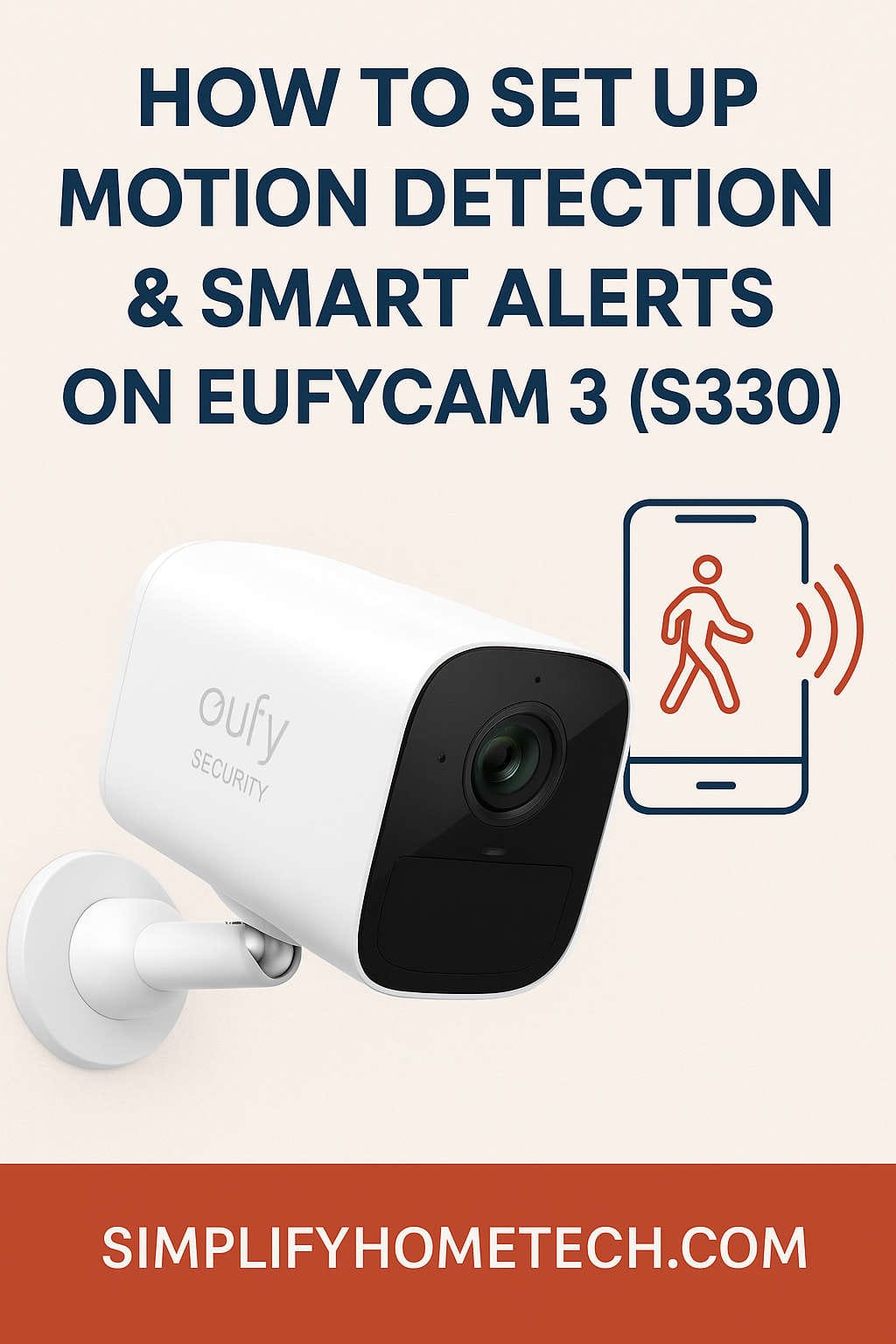
Home security has evolved from simple locks and alarm systems to smart, AI-powered solutions that offer real-time protection and peace of mind. Among the top contenders in the smart security space is the EufyCam 3 (S330), a powerhouse 4K camera system that combines cutting-edge features with user-friendly setup and zero subscription fees. If you’ve just purchased a EufyCam 3 system or you’re considering getting one, you’re likely wondering how to make the most of its motion detection and smart alert features.
This guide walks you through everything you need to know about setting up motion detection and smart alerts on the EufyCam 3, ensuring that you catch the right moments without being bombarded by false alarms.
Why the EufyCam 3 (S330) Stands Out
Before diving into the setup, it’s worth highlighting why this camera system is making waves in the smart home space. The EufyCam 3 records in ultra-crisp 4K resolution, has a built-in solar panel to keep it charged indefinitely under the sun, and stores footage locally using the HomeBase 3 with optional SSD expansion. That means no cloud dependency, no hidden fees, and complete control over your data.
One of its strongest features is the AI-powered motion detection, which distinguishes between humans, vehicles, and pets, sending smart alerts only when necessary. With proper configuration, you’ll get notified about real events while reducing nuisance alerts triggered by things like tree branches swaying or insects flying past the lens.
Let’s walk through how to get it all set up.
Getting Started with Setup
- Unbox Your System: Inside the box, you’ll find your EufyCam 3 cameras, HomeBase 3 unit, mounting brackets, USB-C charging cable (for initial setup), and user manuals.
- Download the App: Install the Eufy Security app from the App Store or Google Play. Create an account or log in.
- Set Up HomeBase 3: Plug in the HomeBase and connect it to your router using the provided Ethernet cable. Once powered on, the app will guide you through the pairing process.
- Pair the Cameras: Tap “Add Device” in the app, choose your camera model, and follow the on-screen prompts. Make sure your cameras are fully charged before pairing.
Once your system is up and running, it’s time to dive into motion detection and smart alert settings.
Enabling Motion Detection
Motion detection is what allows your cameras to react when something enters their view. But default settings aren’t always ideal for every environment. Here’s how to enable and tweak it to suit your needs:
- Open the Eufy Security app.
- Tap the camera you want to configure.
- Tap the gear icon to open settings.
- Select “Detection Settings.”
- Enable “Motion Detection.”
You can then choose how sensitive the camera is to movement and whether it should look for all motion or only specific types.
Adjusting Motion Sensitivity
Sensitivity settings determine how easily your camera is triggered by movement. The scale ranges from 1 to 7:
- 1-3 (Low): Best for busy areas like near roads or windy yards.
- 4-5 (Medium): Ideal for typical home environments.
- 6-7 (High): Useful for secluded spots where any movement is likely meaningful.
If your camera is triggering too often, dial it down. If it’s missing events, increase the sensitivity. A little trial and error can help you find the sweet spot.
Enabling AI Smart Detection
This is where the EufyCam 3 shines. Rather than treating all motion equally, it uses AI to differentiate between humans, cars, and pets. Here’s how to enable it:
- Go to your camera’s settings in the app.
- Tap “Detection Type.”
- Choose one or more of the following:
- Human Detection
- Vehicle Detection
- Pet Detection
This way, you’re not alerted every time a bird flies by or a shadow moves.
Customizing Activity Zones
Sometimes, even smart detection isn’t enough, especially if your camera faces a busy street. That’s where Activity Zones come in handy.
Here’s how to create one:
- In your camera settings, tap “Activity Zone.”
- You’ll see a live view from your camera.
- Draw a custom area using your finger to select the region you want to monitor.
- Save your zone.
The camera will now focus only on motion in that specific area. You can create multiple zones if needed. This feature is invaluable for filtering out unwanted movement from the background.
Setting Up Smart Alerts
Once motion detection is tuned properly, it’s time to configure how you receive alerts.
- Go to your camera settings.
- Tap “Notifications.”
- Enable “Push Notifications.”
- Under “Notification Type,” choose your preference:
- Text Only: Saves data and is quicker.
- With Thumbnail: See a snapshot in your notification.
- Full Video Preview (if available): View footage directly from your lock screen.
You can also link sound alerts to your HomeBase if you want an audible notification when someone approaches.
Scheduling Motion Detection
You might not want alerts at all hours. That’s where scheduling comes in. You can set specific timeframes for your cameras to be active or silent.
- Open the Eufy app.
- Go to “Security Mode.”
- Tap on your current mode (e.g., Home, Away).
- Set a schedule or automation (like arming cameras at night).
This feature is especially helpful if you’re home during the day and only need monitoring at night.
Fine-Tuning for Night Time
Motion detection can behave differently at night due to infrared lighting. Make sure “Night Vision” is enabled and the camera is mounted in a location where IR sensors aren’t obstructed. Also, test your setup at night by walking through the detection zones to ensure it captures and alerts appropriately.
Testing Your Setup
Once everything is configured, it’s important to test your system.
- Walk through your Activity Zones.
- Confirm that your phone receives alerts.
- Check if the camera footage is clear and captures the event correctly.
- Review the motion detection clips stored on the HomeBase.
If things aren’t working as expected, revisit the settings and adjust sensitivity or detection types accordingly.
Reducing False Alarms
No system is perfect, but here are some best practices to reduce false notifications:
- Mount your camera 6-9 feet above ground, angled slightly downward.
- Avoid pointing cameras directly at roads or moving trees.
- Use Activity Zones to ignore irrelevant areas.
- Stick to AI detection, especially if you live in a high-traffic area.
- Keep your camera firmware updated, as improvements are released regularly.
Common Issues and Fixes
Not Receiving Alerts?
- Check if notifications are enabled in both the app and your phone settings.
- Ensure the camera is online and motion detection is turned on.
Too Many Alerts?
- Lower the sensitivity.
- Narrow your Activity Zones.
- Switch from “All Motion” to “Human Only.”
Delayed Notifications?
- Improve Wi-Fi signal or reposition the HomeBase.
- Avoid placing the HomeBase inside metal cabinets or behind thick walls.
Final Thoughts
The EufyCam 3 (S330) offers an outstanding blend of smart features, high-resolution video, and user control. Setting up motion detection and smart alerts correctly can make a huge difference in the effectiveness of your home security system. Once dialed in, you’ll receive only the alerts that matter—keeping you informed and protected without overwhelming your phone.
Security isn’t just about watching footage after something happens—it’s about preventing incidents before they occur. With the EufyCam 3 and this setup guide, you’re well on your way to creating a safer, smarter home.
If you found this guide helpful, consider bookmarking it or sharing it with a friend who’s also setting up their EufyCam system. And if you run into any issues, Eufy’s customer support is just a tap away inside the app, ready to help you out. Stay safe and secure!